
AI Audio Guides
What Is a Ghostface Voice Changer? Setup & Tips
Learn what a Ghostface voice changer does, how live filters differ from AI voice conversion, and how to set up, tune, and test a convincing horror voice.
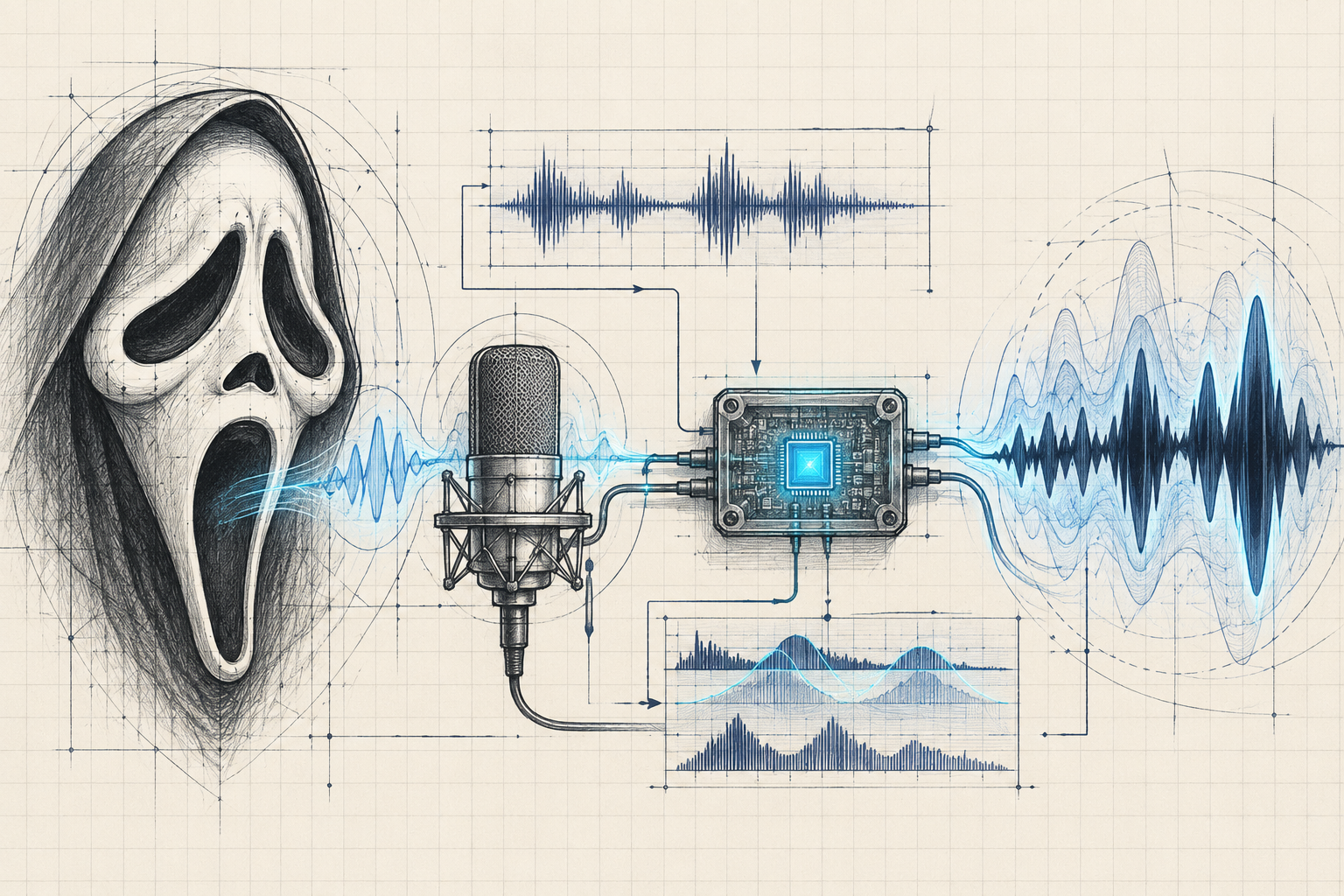
A Ghostface voice changer is software or hardware used to create a voice inspired by the masked character in the Scream films. It may process a microphone live, transform a recording with AI, or apply conventional audio effects. The phrase describes a desired sound, not one universal app, device, or AI model.
For live conversations, look for a real-time processor with microphone routing. For a video, a recorded workflow gives you more control. A soundboard only plays prepared clips, while text-to-speech generates speech from written words. Those distinctions matter more than a product having “Ghostface” in its name.
Reviewed October 26, 2026. This is an educational workflow guide, not a hands-on ranking or a claim that any preset reproduces the film performance exactly.
Table of contents
- What the term actually means
- Four technologies people confuse
- How a Ghostface-style voice effect works
- How to set up live voice changing
- How to make a recorded horror voice
- How to compare tools and troubleshoot
- Where 01Router fits in a creator workflow
- Consent, privacy, and publishing
- Frequently asked questions
- Create your horror audio with 01Router
What the term actually means
Search results can refer to three different things: the fictional device shown in a film, a physical costume accessory, or an app preset inspired by the character. Before downloading or buying anything, identify which one the page describes. A convincing prop and a usable microphone processor solve different problems.
The screen voice is also a performance. In a production interview, the sound team behind Scream 7 discusses Roger Jackson's voice work and the attention given to preserving the character's recognizable sound. That is a better reference point than assuming a retail gadget automatically creates the finished movie voice. Source: production sound interview.
An effect can change vocal weight, brightness, and texture. It cannot guarantee the same acting choices, recording conditions, or final mix. Aim for an original suspenseful character with intelligible dialogue. Treat resemblance as a creative direction rather than a measurable promise made by a preset name.
Four technologies people confuse
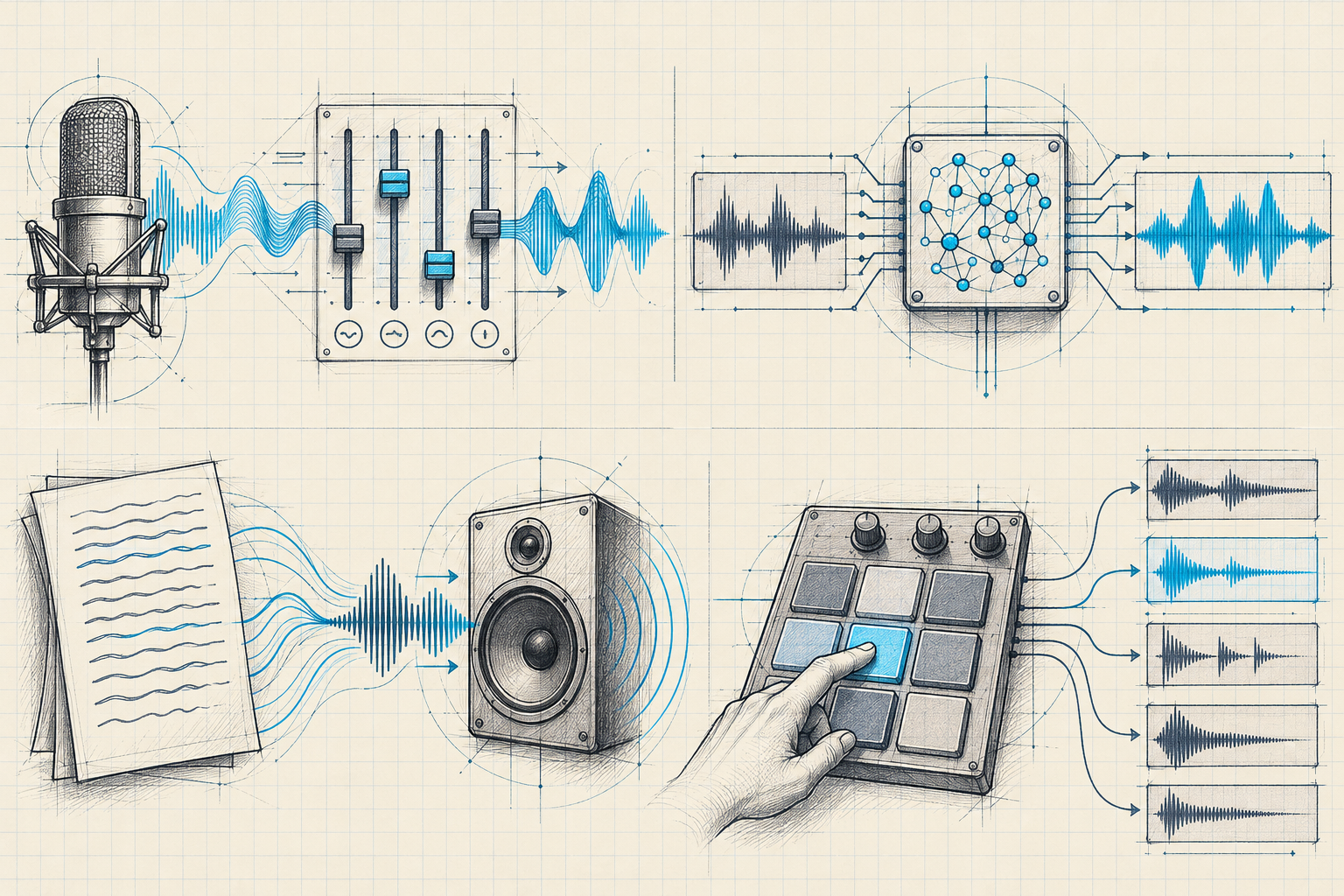
| Technology | What you provide | What it produces | Practical fit |
|---|---|---|---|
| Real-time voice changer | Live microphone audio | A processed microphone stream | Voice chat, role-play, streaming |
| AI voice conversion | Spoken audio, often a recording | Speech with a different voice identity | Character dialogue and edited clips |
| Text-to-speech, or TTS | A written script | Newly generated speech | Narration without recording yourself |
| Soundboard | Existing audio clips | Playback triggered by buttons | Repeated cues and prepared reactions |
“Real-time” describes delivery timing; “AI” describes a processing approach. They are not opposites. A real-time product can contain conventional effects, AI processing, or both. Likewise, a microphone recording button on a website does not establish that the website can feed another application's microphone continuously.
Voicemod documents live effects and virtual microphone use. ElevenLabs describes voice conversion that transforms source speech while retaining aspects of its delivery. These are examples of different capabilities, not evidence that either includes an official Ghostface voice. Voicemod effects, ElevenLabs voice conversion.
A useful selection rule is simple: start with the output you need. If another person must hear you immediately, investigate live routing. If you need an exported file, investigate recording quality and editing. If you only have a script, investigate TTS. A downloaded clip cannot become an interactive voice just because a soundboard plays it.
How a Ghostface-style voice effect works
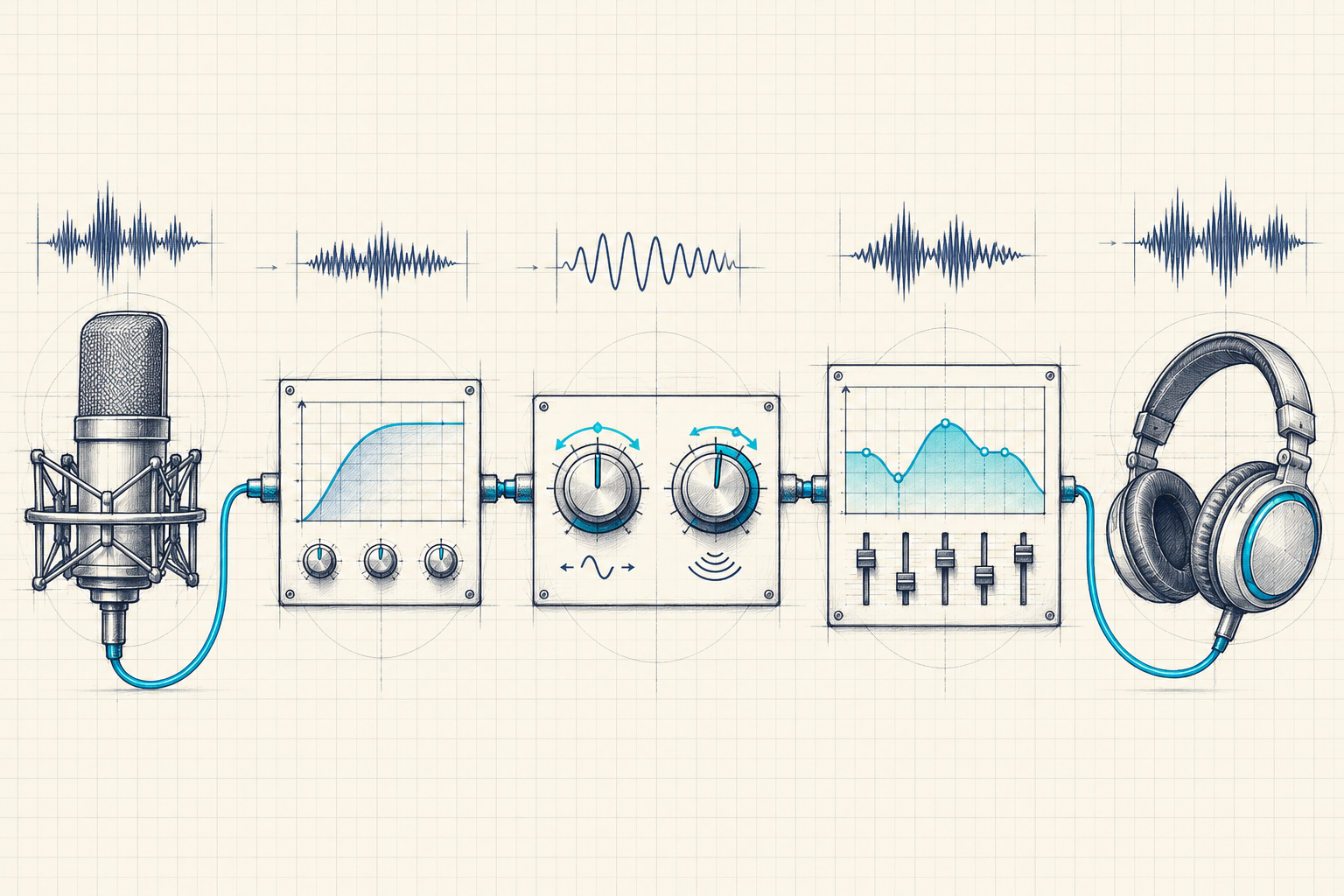
A useful working chain is clean input → voice transformation → tonal shaping → level control → output. Treat it as a starting structure, not a mandatory order for every plugin. Listen after each stage so you know which change helps.
Pitch is perceived vocal height. Lowering it slightly can add weight, but a large shift often makes dialogue exaggerated or unclear. Formants are resonant patterns that contribute to vowel character and perceived vocal identity. A tool with separate pitch and formant controls offers more flexibility than a single “deeper” slider.
Equalization, or EQ, changes the balance of frequency ranges. It can reduce rumble, tame harshness, or create a narrower telephone-like texture. Audacity's documentation explains frequency shaping with Filter Curve EQ. An EQ curve changes tone; it does not substitute for a voice performance. Source: Audacity Filter Curve EQ.
Compression reduces differences between louder and quieter passages. Saturation can add grit. Reverb adds a sense of space. Use these cautiously: an intimate, unsettling voice may become less convincing when buried in distortion or a huge echo.
Finally, delivery matters. Read a harmless original line twice: once quickly and once with deliberate pauses. Keep your volume comfortable and your consonants clear. Compare the emotional result before touching another control. A confident performance through a restrained effect often works better than a weak recording through many processors.
How to set up live voice changing
The essential route is physical microphone → voice-changing application → virtual microphone → destination application. Your headphones are the listening output. Selecting the physical microphone in the destination app usually bypasses the effect.
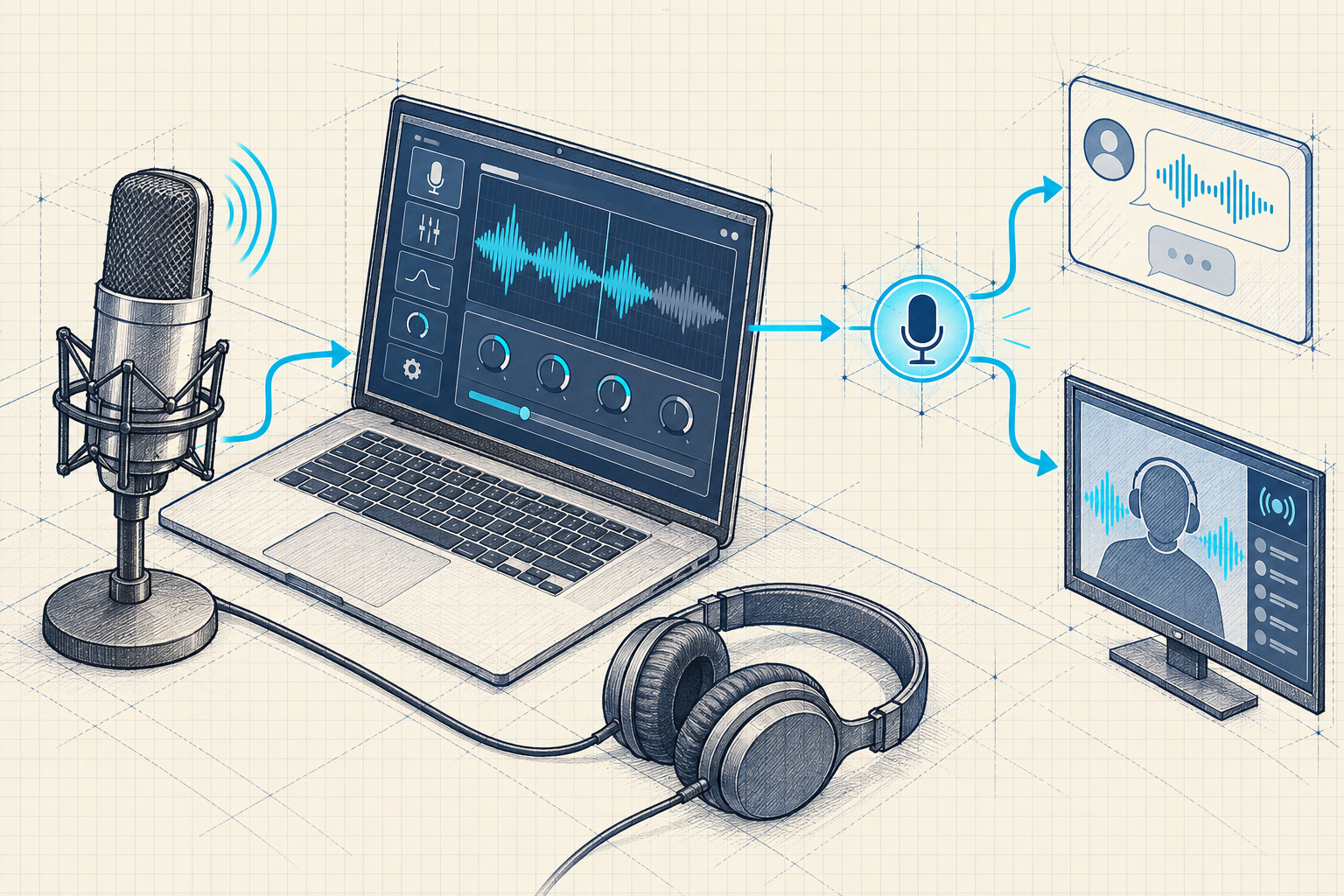
- Confirm compatibility. Check the current operating-system requirements and whether the product installs or exposes a virtual microphone. Do this before paying for a voice pack.
- Select the real microphone inside the processor. Speak normally and verify that its input meter moves. Choose headphones as your listening device.
- Enable one effect. Begin with a restrained preset and verify that you can switch between processed and unprocessed audio.
- Select the virtual microphone in Discord, OBS, or your destination app. Check the device name rather than assuming “Default” points to the correct input.
- Make a private test recording or test call. Listen to what reaches the destination, not just the processor's preview.
- Save a fallback. Keep an accessible mute or bypass control and note which microphone setting restores your normal voice.
Voicemod's Discord instructions specifically use its virtual audio device as the input and headphones as the output. The same guide explains that Discord processing can affect transformed voices. Device names and available controls can vary by platform and version. Source: Voicemod Discord setup.
For OBS, check whether a global microphone source and a scene-specific source are both capturing the same signal. Duplicated capture can make the voice sound doubled. Use one intended route and verify it with a local recording before going live.
If the voice is choppy, compare the destination app with noise suppression temporarily reduced. Change one setting at a time. Do not permanently disable every audio safeguard without listening: your room may still need noise reduction, and your setup may behave differently from someone else's tutorial.
How to make a recorded horror voice
For short videos, game prototypes, or narrated scenes, recording first gives you room to revise timing and repair individual words. Keep an untouched copy of the source so you can compare changes and recover from overprocessing.
Record a useful source
Choose a quiet room, use headphones, and keep your microphone distance consistent. Record an original passage with a calm sentence, a question, a quiet phrase, and a few deliberate pauses. Avoid shouting or forcing a rough voice. Capture a natural performance that you can repeat comfortably.
Check the loudest sentence before recording the full script. If peaks hit the recording ceiling and distort, lower the input level and record again. Turning down a clipped file afterward does not restore the lost waveform. Also listen for fans, room echo, and mouth noises before blaming the effect.
Try a restrained effects recipe
For conventional processing, use the following as an illustrative starting point, not a film-accurate preset or tested universal configuration:
| Control | Starting experiment | Reason to reduce or change it |
|---|---|---|
| Pitch | Compare unchanged with roughly 1–3 semitones lower | Words become unnatural or heavy |
| Formant | Try a small downward adjustment if available | Vowels lose clarity |
| EQ | Remove audible rumble; compare mild midrange shaping | The voice becomes thin or muffled |
| Saturation | Add a subtle amount, then bypass it | Crackle distracts from dialogue |
| Reverb | Begin dry; add a little only if the scene needs space | Pauses fill with distracting tails |
Use equal perceived loudness for comparisons. A louder setting can seem more impressive even when it is less intelligible. Save several short versions instead of repeatedly overwriting a single file, and listen again after a short break.
Use AI conversion when it suits the task
If you need a larger change in vocal identity, try a voice you own or are permitted to use in an AI conversion tool. Preserve the source performance, convert a short sample, and inspect pauses, names, breaths, and sentence endings before processing a long script.
Check the provider's current input requirements and supported output voices. “Audio model” does not automatically mean speech-to-speech support. ElevenLabs' API reference, for example, explicitly distinguishes models with voice-conversion capability. Source: voice changer API reference.
How to compare tools and troubleshoot
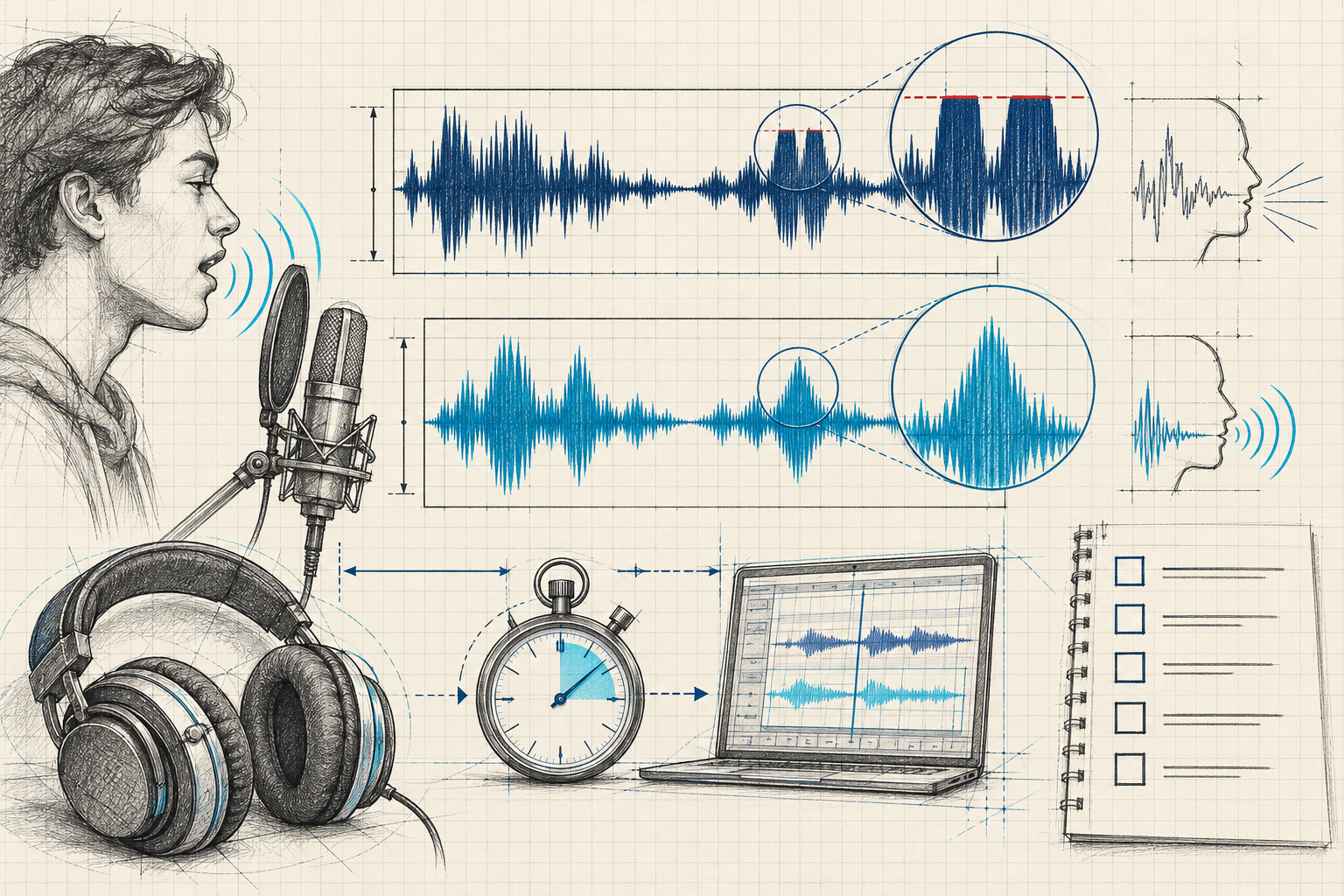
Use the same 20–30-second original recording for every comparison. Include ordinary speech, a question, a quieter line, and a pause. This is a suggested evaluation method, not a published benchmark. Testing different sentences makes it harder to separate a better effect from a better performance.
Score five things in plain language: clarity, character, consistency, responsiveness, and control. Can a listener understand every word? Does the tone suit the scene? Does it remain stable across sentences? Can you converse comfortably? Can you undo processing or export a clean result?
Record your operating system, microphone, app version, preset, and destination. For cloud processing, note whether you measured upload time, processing time, or the entire wait until playback. Those are different measurements. Avoid repeating “zero latency” as a factual result unless your measurement supports it.
| Symptom | Likely area to inspect | First practical check |
|---|---|---|
| Others hear your normal voice | Destination input or bypass state | Select the virtual microphone and enable processing |
| Voice sounds doubled | Duplicate sources or monitoring | Record with only one intended capture path |
| Quiet words disappear | Gate or noise suppression | Compare a lower threshold or gentler suppression |
| Crackling appears | Input clipping or device settings | Lower gain and check sample-rate compatibility |
| Voice sounds robotic | Excessive transformation or weak source | Compare milder settings with a cleaner recording |
| Conversation feels delayed | Processing, buffering, or monitoring | Compare a simpler chain and a wired listening path |
For a paid tool, check export limits, recurring charges, offline availability, and whether your desired preset is included. A free download may have paid features. Prefer a small test with your actual microphone over buying based on an impressive demonstration recorded in unknown conditions.
Where 01Router fits in a creator workflow
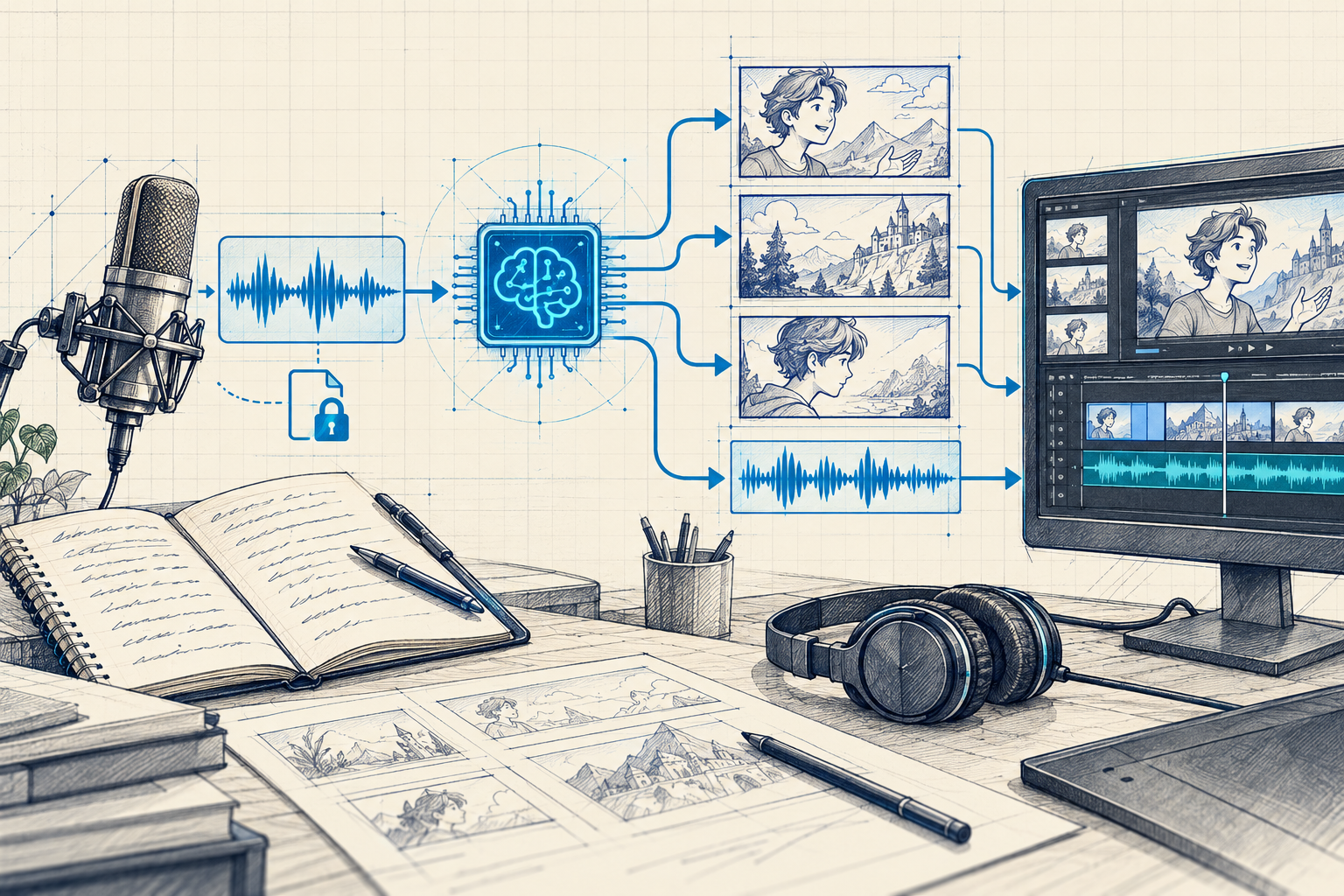
01Router presents a unified API for available video, image, text, and audio models. That can be relevant when a voice experiment becomes a complete creative project: writing an original script, generating visual assets, and assembling a short scene.
This does not establish that 01Router supplies a Ghostface preset, voice cloning, or a real-time virtual microphone. Verify the exact capability in the 01Router model catalog before choosing a model. Music generation, narration, and voice conversion are separate tasks even when grouped under audio.
A practical workflow is to finalize the spoken performance with a suitable audio tool, create supporting visuals with an available image or video model, and combine the assets in an editor. Keep the voice track separate until the timing is settled. If a model also generates audio, listen before mixing it with your dialogue.
For integration, use the 01Router API documentation to verify request parameters and completion handling. Review 01Router pricing before a batch. Budget for iterations and discarded takes, rather than assuming every generated asset will be usable.
Consent, privacy, and publishing
Use voice effects for an agreed creative context: a role-play session, a clearly fictional video, or a production with consenting participants. Do not use a recognizable voice to mislead someone about who is speaking, make threats, or present a fabricated endorsement.
Before uploading recordings, check retention, deletion controls, and whether the service uses submitted audio for training. Avoid including private conversations or unnecessary personal details in test clips. An unfamiliar download advertised as “official” deserves verification through the developer's own website.
For commercial work, confirm the permissions attached to your selected voice and assets. A subscription or preset name alone is not proof of permission to advertise a connection with a film franchise or performer. Describe your work accurately and keep any required disclosure visible to its audience.
Frequently asked questions
Is a Ghostface voice changer one specific product?
No. The phrase can refer to a film prop, a costume device, an effects preset, or an AI workflow. Ask whether the tool processes live speech, converts a recording, generates speech from text, or only plays existing clips.
Can a voice changer sound exactly like the movie?
Do not assume so. The result depends on the performance, source recording, processing, and playback context. A recognizable style may be achievable, but an “exact” claim needs evidence. Audition your own voice instead of relying only on a promotional sample.
Can I use it on Discord or OBS?
Yes, if the chosen software and operating system provide a compatible audio route. In a common desktop setup, the processor receives your real microphone and the destination receives its virtual microphone. A successful preview alone does not confirm the route.
Will a mobile app change ordinary phone calls?
Do not assume that it will. Recording inside an app differs from replacing the microphone used by a phone call or another app. Verify support for your device, operating system, and exact calling service before buying.
Is there a free way to experiment?
You can experiment with your own recordings and basic effects in a free audio editor such as Audacity. That is an offline editing workflow. Real-time routing, particular presets, and AI conversion may have separate access or payment requirements.
Does 01Router include a Ghostface voice model?
This guide does not verify such a model. Check the current catalog and model-specific documentation for the task you need. Access to audio generation should not be interpreted as a promise of Ghostface conversion or live microphone processing.
Start with a short, clean recording and one clear use case. Choose the appropriate technology, test the full audio path, and judge the result by how well it serves your scene.
Create your horror audio with 01Router
Ready to make an original horror scene? Open 01Router Gateway and explore the Audio models. Our ElevenLabs Eleven v4 / v4 Turbo options generate spoken dialogue from text, while Suno V6 creates music for the scene. Together, they support the character-voice and soundtrack parts of this creative workflow.
- Generate the dialogue with ElevenLabs Eleven. Enter an original script, select an available voice, and audition its delivery. Try a short line such as:
[whispering] The hallway is quiet. Then the phone rings.Adjust the available voice controls and compare short takes; audio tags guide delivery but do not guarantee a specific result. - Create the atmosphere with Suno. Choose instrumental generation and describe the backing track: “Minimal suspense underscore, slow pulse, sparse piano, dark ambient texture, no vocals.” Listen for a result that leaves room for speech.
- Combine the tracks. Download the outputs, align them in your editor, and keep the music below the dialogue. Add a restrained telephone-style effect if it suits the scene.
This produces scripted, Ghostface-inspired horror audio. For live microphone transformation or conversion of an existing voice recording, use a tool that explicitly supports those capabilities; these Gateway options provide TTS and music generation.